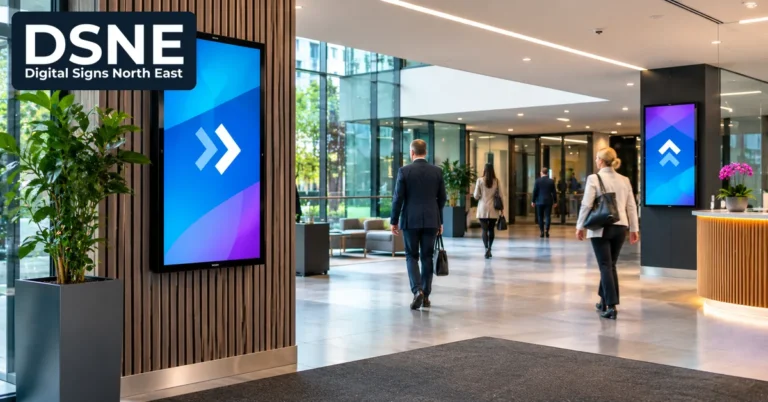

Digital signage for schools can make communication clearer, from reception welcomes to canteen menus and visitor directions. For education settings in Newcastle and across the North East, success depends on useful content, appropriate hardware and careful safeguarding and accessibility decisions. This guide explores practical uses and planning considerations.
Welcome visitors at reception
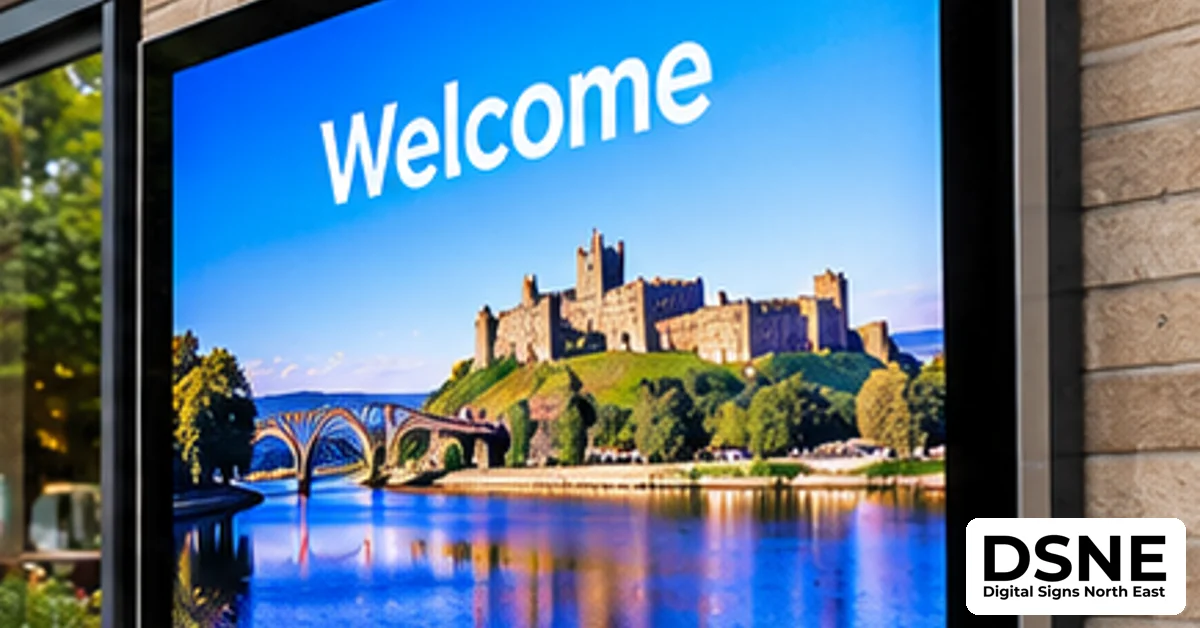
A reception screen can welcome visitors, share event details and explain where to report on arrival. It should support rather than replace staff instructions and essential safeguarding procedures. Keep the main message large enough to read from the waiting area. Avoid publishing private pupil information. A school may also use this location to promote open evenings, parent meetings and performances. Assign a member of staff to check that each announcement is current and that outdated dates disappear promptly.
Daily notices and timetable information
Communal screens can display daily notices, clubs, timetable reminders and room changes. The greatest challenge is maintaining accurate information. Schools should establish who can publish updates and who approves them, particularly when different departments contribute material. Avoid displaying individual pupil information or details intended for private communication. A useful screen shows a small number of important messages rather than dozens of rotating slides. Our digital signage content scheduling guide explains how to match information to the right time of day.
Celebrate pupil achievements
Digital displays can highlight sports results, school productions, community projects, fundraising and student work. This helps showcase school life and recognises achievements beyond the classroom. However, schools must follow their own safeguarding and privacy policies before displaying names, photographs or other identifiable information. Where consent is needed, check it is appropriate for the intended use. Keep captions short and use approved images. A small collection of strong visuals often makes more impact than a crowded slideshow. Refresh the display regularly to keep the content meaningful.
Help people find their way
Large schools and colleges can be confusing for visitors and new students. Screens near entrances and key junctions can help direct people to reception, sports facilities, halls and temporary event rooms. Use consistent building names and straightforward arrows or location information. Digital wayfinding should complement permanent signs, not replace every physical direction. Consider accessibility and sightlines when selecting mounting positions. A screen that cannot be read from the point where people make a decision will not be helpful, however attractive the design.
Improve canteen information
Canteen screens can show daily menus, opening information and prices where relevant. Position them where pupils can read them without obstructing the queue. Staff need an easy way to change menu items when availability changes. Allergy information requires particular care and should not rely solely on a screen where individual advice is needed. Our digital menu board design guide covers layout and readability. Strong contrast, short descriptions and a consistent visual hierarchy help people make decisions quickly.
Support general safety communications
Screens may support routine safety reminders and temporary site notices, but they are not substitutes for approved emergency alarms, evacuation procedures or statutory safety signs. If the display or network fails, essential instructions must remain available through appropriate channels. Any proposed integration with urgent messaging needs careful design and testing. Schools should define which messages are suitable for screens and who has authority to publish them. Clear responsibilities help avoid contradictory or outdated information during a busy school day.
Design for accessibility
A design that looks clear on a laptop can be difficult to read from the end of a corridor. Choose text sizes for the real viewing distance and use strong colour contrast. Avoid tiny captions, excessive animation and information that depends entirely on colour. Consider pupils, staff and visitors with different accessibility needs and offer other communication methods where required. Our digital signage text size guide explains practical readability principles. Accessibility should influence the screen position and content templates from the beginning.
Select suitable hardware and locations
A reception display, corridor screen and canteen menu board may require different hardware. Consider brightness, viewing angle, secure mounting, cable protection and the risk of accidental knocks. Equipment should be installed with appropriate electrical arrangements, and staff must be able to access it safely for maintenance. Check whether a display is rated for the expected daily operating hours. A site survey can identify locations where screens will be useful without obstructing movement or creating distracting glare. Buying equipment before deciding its purpose often leads to poor placement.
Manage permissions and content ownership
Schools need a clear process for creating, reviewing and publishing screen content. Decide which team owns the system, who approves announcements and how urgent corrections will be handled. Use suitable account permissions so only authorised staff can publish. Shared templates help maintain consistent branding even when several departments supply information. It is sensible to begin with a manageable number of screens and a simple publishing routine. Adding more displays before establishing content ownership can create extra work without improving communication.
Plan for connectivity and maintenance
Ask what happens when the internet connection is unavailable. Some signage systems can continue playing stored material, while others rely on more frequent network access. Our offline playback guide explains important questions. Schools should also plan routine checks for display health, outdated messages, software updates and damaged cables. Maintenance arrangements need to fit around teaching hours and site access requirements. Reliable operation is as important as visual design, particularly where screens are used every day.
Start small and measure usefulness
A sensible first project might be a welcome display at reception or a canteen information screen. Define the audience, the message and the person responsible for keeping it updated. Seek feedback from staff and visitors and look for practical improvements, such as fewer repeated questions or easier notice updates. Avoid assuming that adding screens automatically improves communication. Once the first display is useful and manageable, a school can consider expanding to other areas. Digital Signs North East can help education organisations explore suitable display and installation options.
Begin with a clear purpose, one well-chosen location and a manageable content routine. A successful first screen provides a foundation for a wider school communication project.